

On this page
Three things to do today
Synology released DSM 7.4.1-90080 Update 2 on to address two security issues. Schedule the patch promptly for affected devices, particularly when DSM or NAS applications are reachable from the internet. Before installing it, restore and open one file from the latest backup. [1]
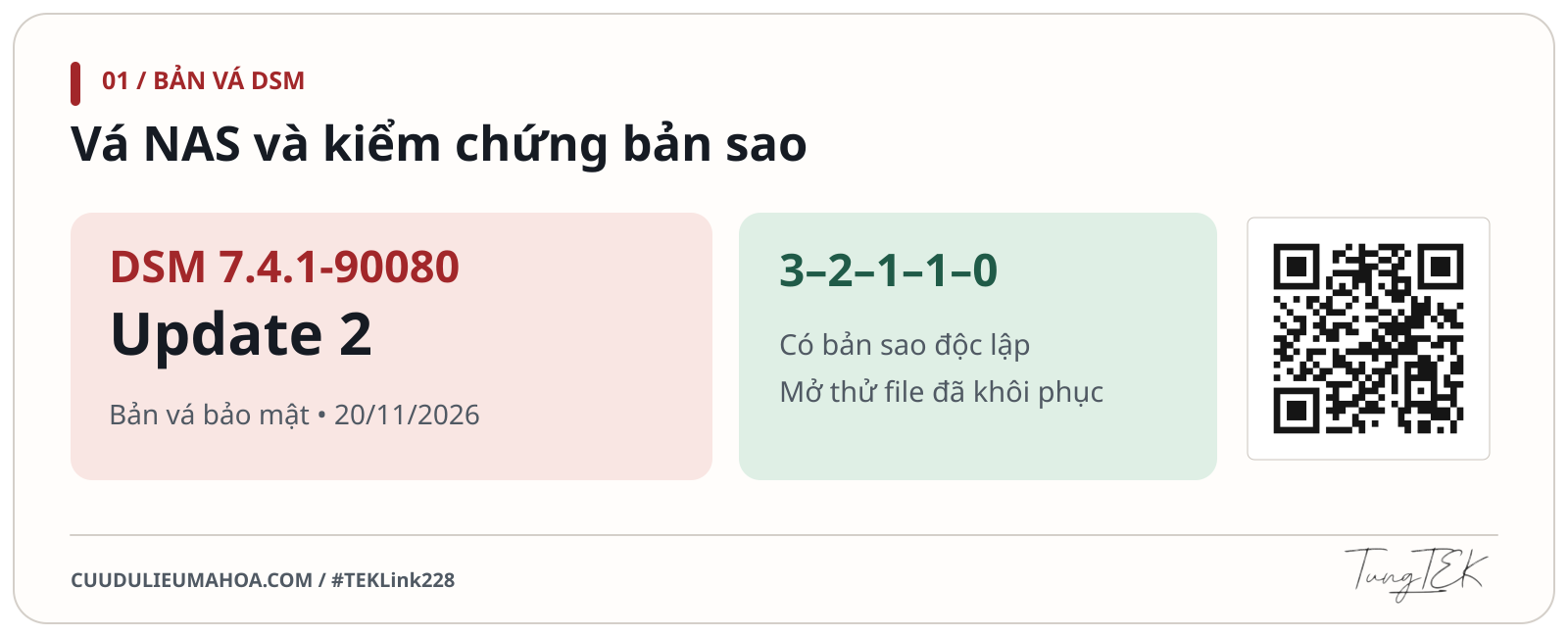
- Confirm the NAS model and the installed DSM build.
- Restore a file to a separate folder and open it in its usual application.
- Confirm that at least one offline or immutable backup is available.
What Synology DSM Update 2 changes
Update 2 is a security patch. Installing it restarts the NAS and cannot decrypt files already locked by ransomware. Synology lists two security fixes in the release notes and lists no new features or Hyper Backup changes for this update. [1]
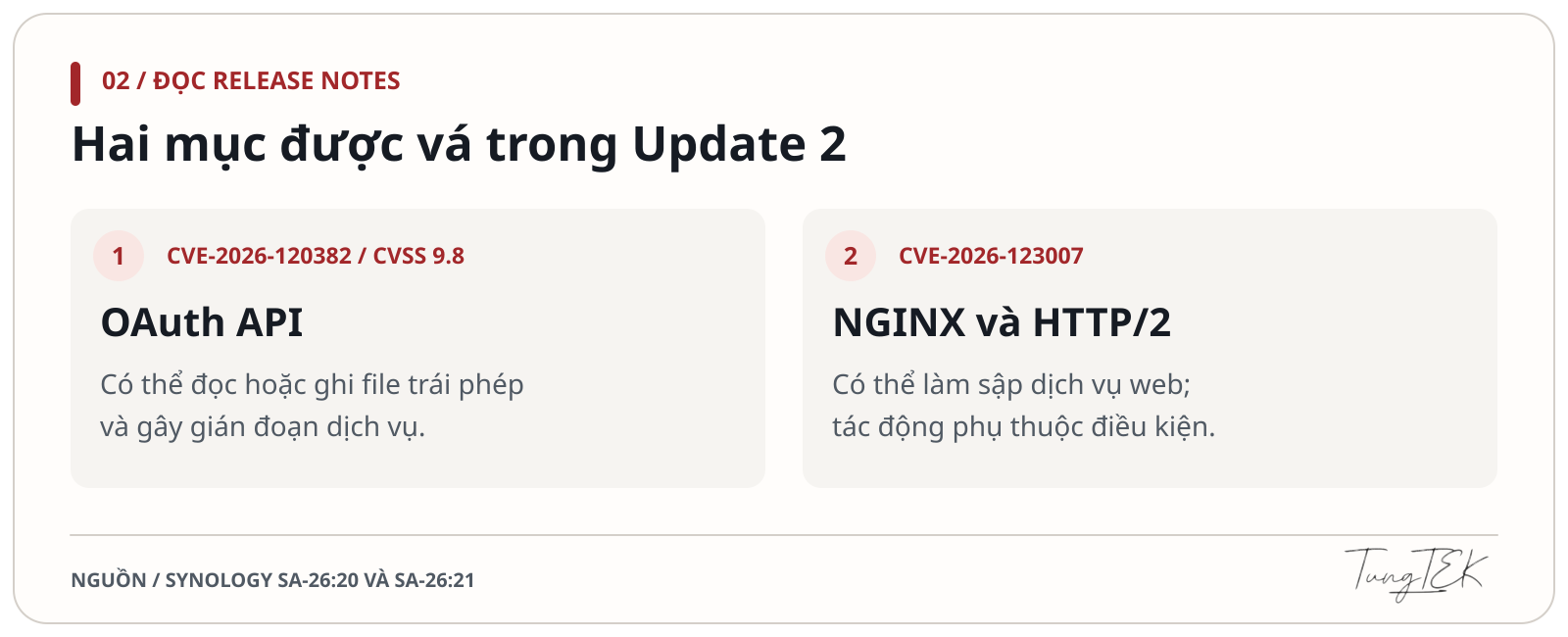
- CVE-2026-120382 · OAuth API · CVSS 9.8/10. A remote attacker who can reach the affected component can read or write files without permission, or disrupt service. The advisory indicates that an account is unnecessary. [2]
- CVE-2026-123007 · NGINX/HTTP/2 · CVSS 8.1/10. Synology rates the impact on DSM 7.4 and 7.3 as Critical. It describes possible file access, modification or service disruption. Remote code execution depends on particular technical conditions and configurations. [3]
The fixed versions are 7.4.1-90080 Update 2 for DSM 7.4 and 7.3.2-86009 Update 6 for DSM 7.3. For other branches, check the release notes for your model and the fixed-version tables in both advisories. Availability can vary by region during rollout. [1] [2] [3]
In its 20 November 2026 announcement, Synology said it had observed no exploitation of these vulnerabilities at that time. Attributing an individual ransomware incident requires evidence from the affected systems. [7]
Why files can still be encrypted on a patched NAS
When a workstation is infected, ransomware can use the signed-in account’s SMB write access to alter files on a share. A sync job can then copy those damaged versions. Without version history or a separate recovery point, a synced copy may be unusable when you need it.
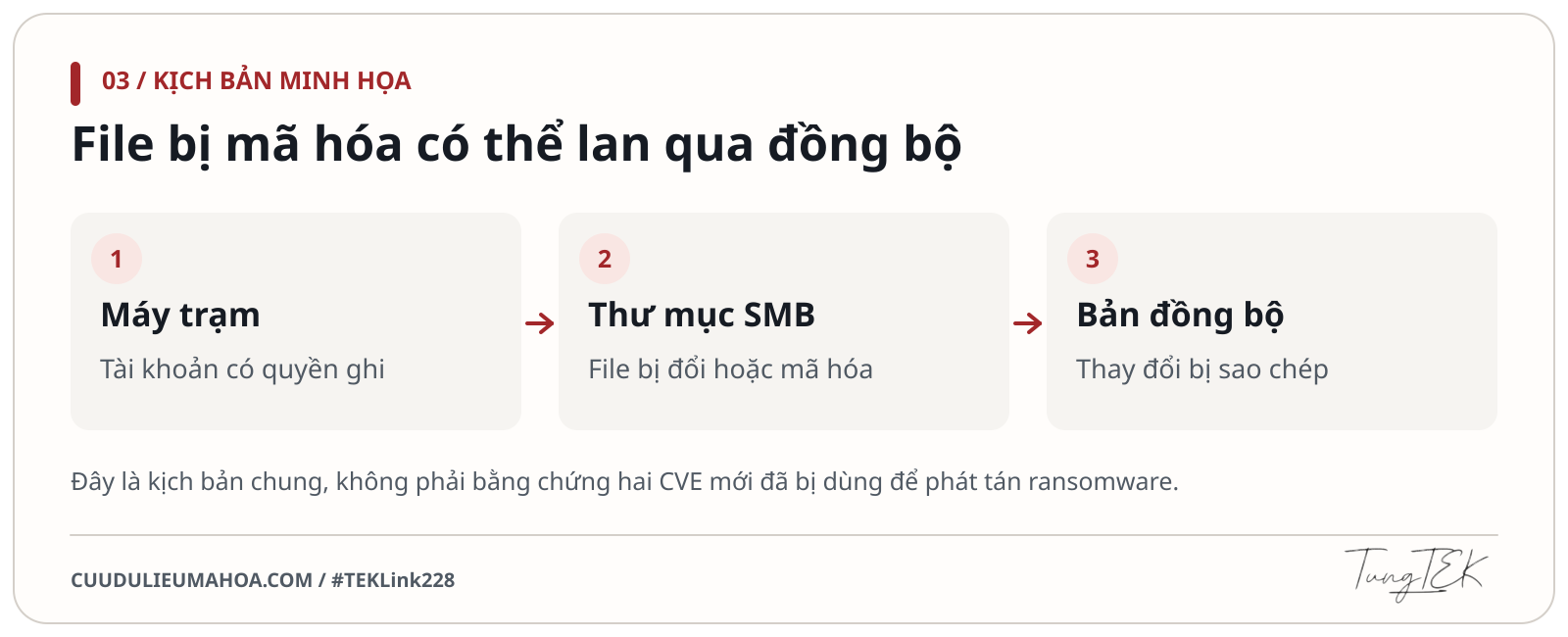
Review who can modify production data and who can delete backups. Limit write permissions to the work people need to do, use separate backup administration accounts and restrict internet access to NAS management. Keep an independent copy alongside same-NAS snapshots or synchronised folders so you still have a recovery source if the device or an administrator account is compromised. [4]
Update the NAS in a maintenance window
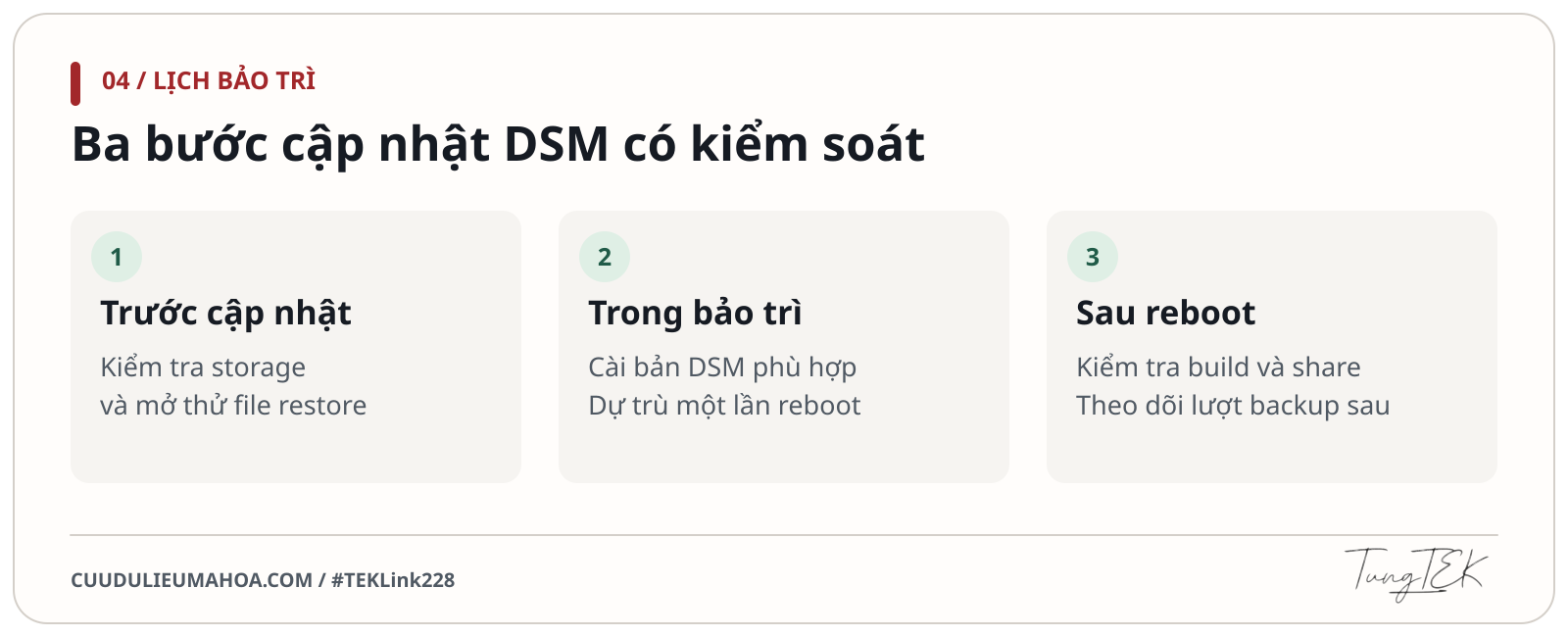
- Before installation. Confirm your model in Info Center and check the installed build and recommended update under Control Panel → Update & Restore. Review disk and storage status and check for active rebuilds or backup jobs. Export the DSM configuration, then restore and open one file from the latest backup in a separate test folder.
- During installation. Schedule downtime when usage is low and use the official package for the model. The NAS will restart. Base the maintenance plan on a tested backup, since downgrading DSM should not be relied on as a rollback option. [1] [5]
- After installation. Confirm the new build, open an SMB share as a regular user, check essential packages and review the next backup run.
When to change the plan
For a normally operating NAS, use the next maintenance window after testing a restore. If DSM is internet-facing and you cannot patch yet, restrict external access. Synology’s temporary mitigations are to disable HTTP/2 under Control Panel → Network → Connectivity for SA-26:20 and to stop the OAuth Service package for SA-26:21. Check dependencies before changing either setting and schedule the appropriate update. [2] [3]
If you see signs of compromise or ongoing encryption, follow the incident response process before updating or restarting.
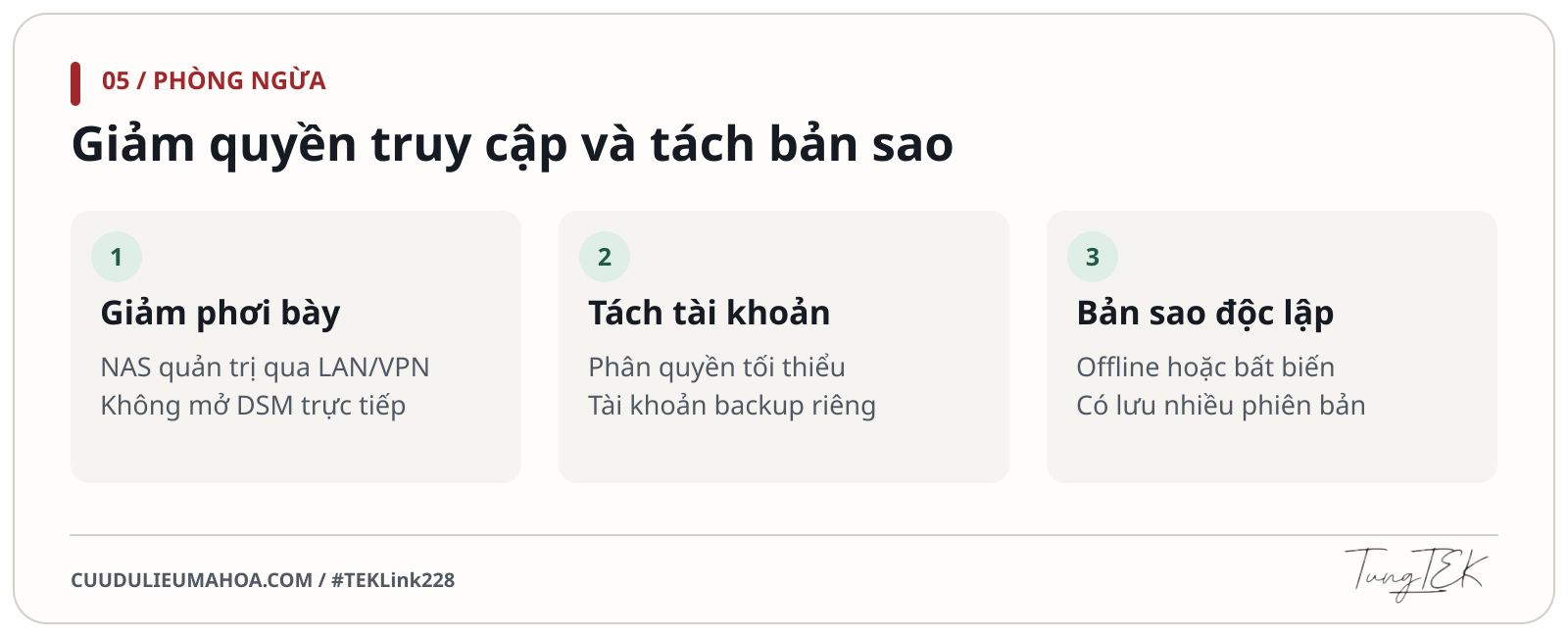
Design backups around the 3-2-1-1-0 rule
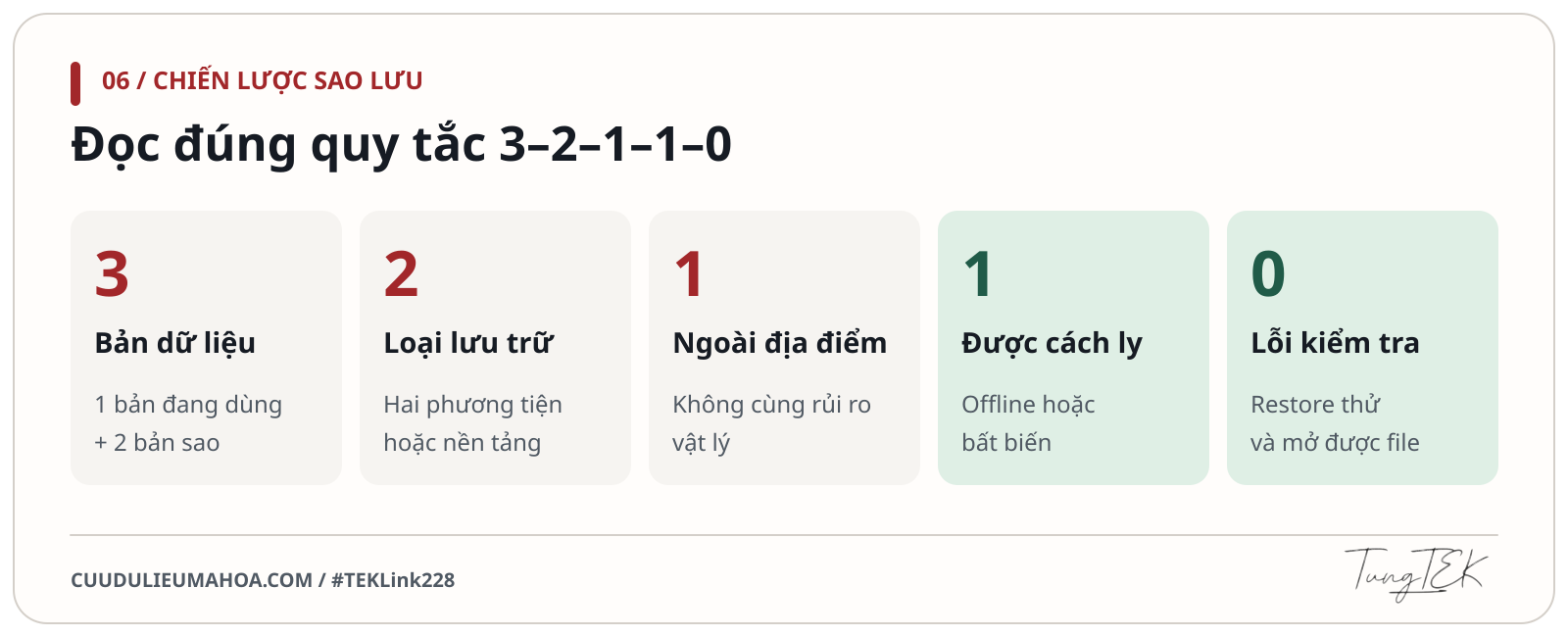
- 3 copies of the data. Keep the working copy and two backups.
- 2 types of storage. For example, use disk storage and an object repository. Two folders on one NAS still share the same device.
- 1 off-site copy. Keep a copy at another location or with an external storage provider, with access controls in place.
- 1 offline or immutable copy. Disconnect a copy outside backup windows, or use a repository that blocks changes and deletion during retention. An off-site copy can also meet this requirement if suitably protected.
- 0 errors in recovery verification. Restore separately, open the files and check the data. Fix any issues and retest. A “backup successful” email records the job’s completion status. [6]
A small business could keep working data on its NAS, a versioned backup on a separate device and an off-site copy with retention lock and distinct administration credentials. Choose a backup frequency based on how much data loss the business can tolerate. Use the acceptable downtime to plan recovery exercises. A one-file test validates that file and version. Plan additional tests for the folders, access permissions and databases you need to recover.
Việt Nam Backup Day and the one-file restore test
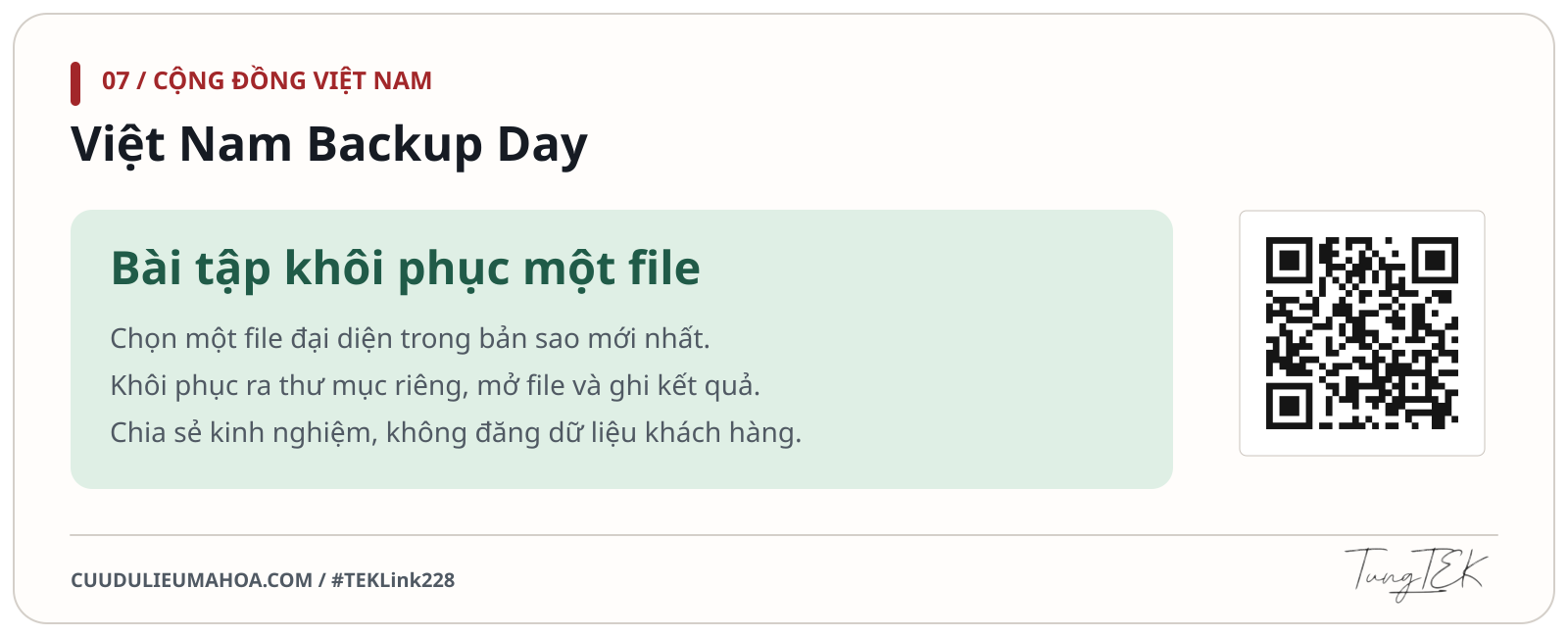
- Pick a file used for real work, such as a closing spreadsheet, a production drawing or a record that needs to be reconciled.
- Select a backed-up version, restore it to a separate folder and inspect it in the correct application. Leave the working file intact.
- Record the backup set, version date, test result and time to restore. If it fails, record the error and assign someone to resolve it.
Share testing methods and outcomes in the Việt Nam Backup Day Zalo group. Keep actual files, passwords and backup keys in your own approved channels.
When files are encrypted and you need recovery help
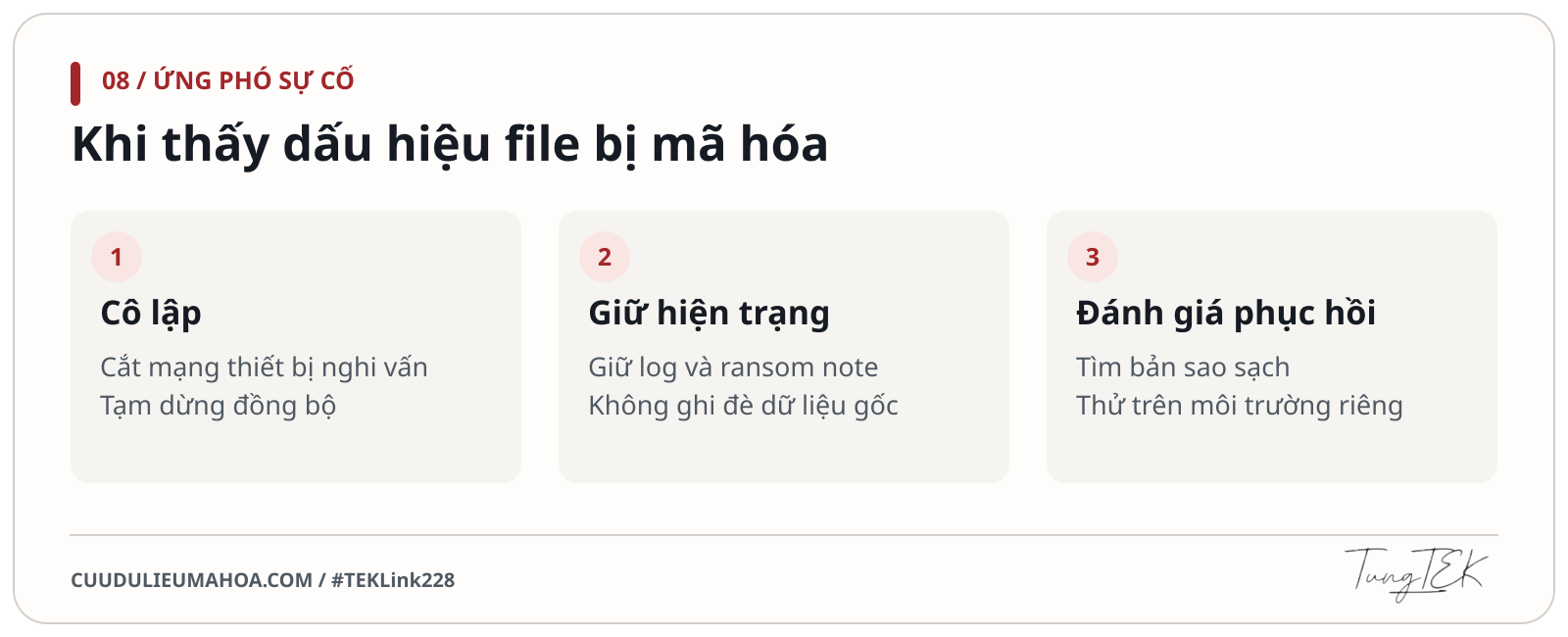
If many file extensions change, files fail to open or a ransom note appears, notify the incident response team. Isolate affected systems from the network and stop any sync job that may bring damaged files into storage. Keep external backup drives disconnected from suspected systems. Preserve the ransom note, affected extensions, discovery time, logs and a record of actions already taken.
Pause resets, reinstalls, overwrites and decryptor tests on original data. Prioritise network isolation to preserve volatile evidence. If disconnecting affected devices is impossible and the incident is spreading, responders should weigh powering them down to limit damage. Restore to systems that have been cleaned or rebuilt. [4]
Sources
- Synology DSM release notes by model · DSM 7.4.1-90080 Update 2 (SA3400) and DSM 7.3.2-86009 Update 6 (DS124)
- Synology-SA-26:21 · OAuth API
- Synology-SA-26:20 · NGINX2Root
- CISA · #StopRansomware Guide · Official PDF
- Synology Knowledge Center · DSM update
- Veeam Best Practice Guide · 3-2-1-1-0
- Synology · Security update announcement, 20 November 2026
#TEKLink228 · Link.TUNGTEK.com/228